
How to Invite or Manage Team Access
The Team page includes an Invite by email section for adding new members, and inline access controls (role selector, Deactivate, Remove) on each existing member row. This article documents the visible fields and controls. No invitation was sent and no member’s role, activation state, or membership was changed during this capture.
Who this is for: Owners or staff who need to understand invite and access controls before using them in an approved environment.
Before you begin
Section titled “Before you begin”- An active operator session with visibility into the Configuration group.
- A synthetic, approved email address only if an invite is ever submitted in a controlled disposable workspace.
-
Open Team from the Configuration group and scroll to Invite by email.
-
Review the Email field. It expects an email address and shows placeholder text such as
colleague@company.com. -
Review the Role selector, which offers: owner, manager, employee, and client.
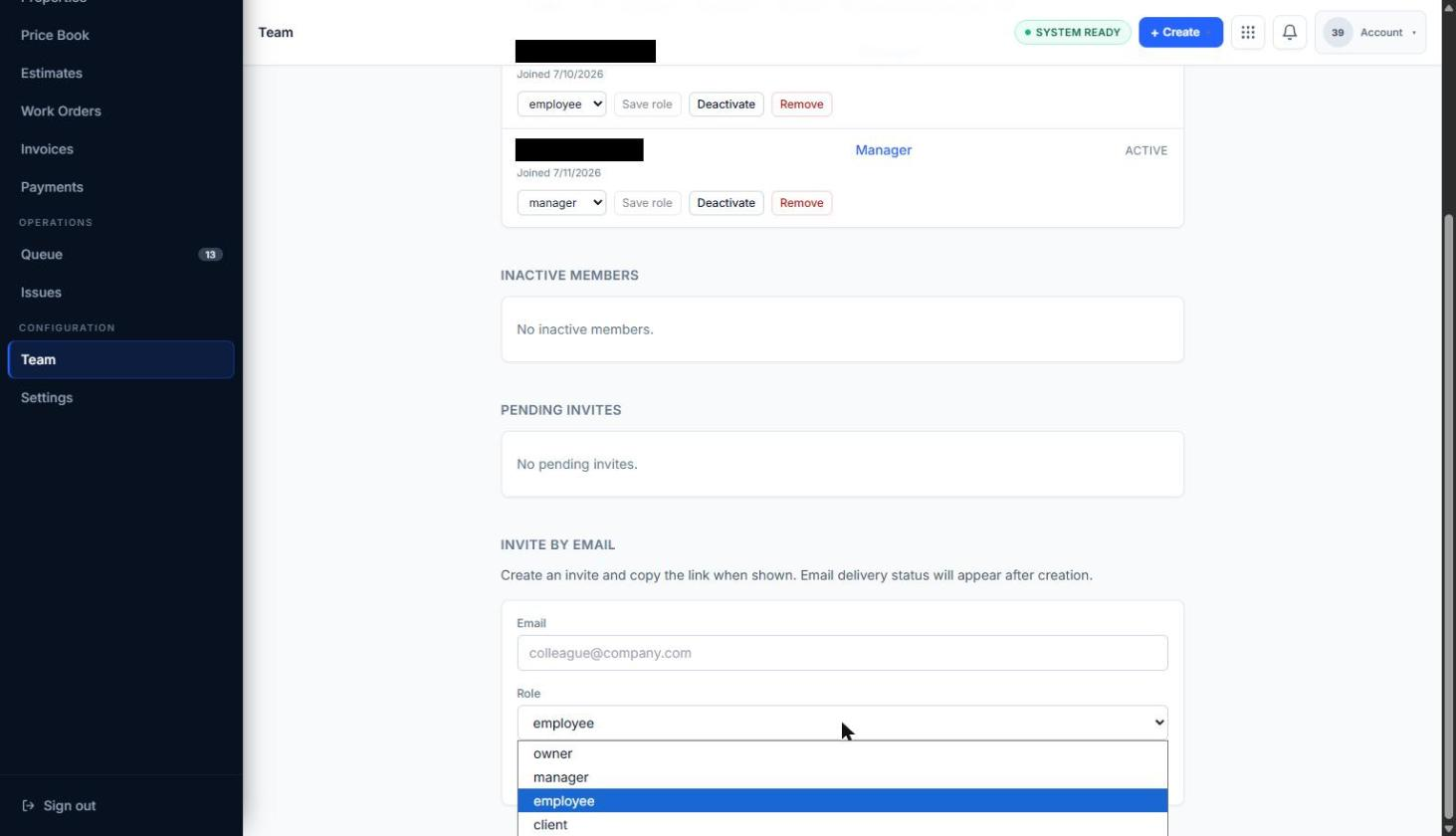
Role options on the invite form.
-
Review the helper text above the form, which states that an invite link is created and can be copied, and that email delivery status appears after creation.
-
Review the Create invite button without selecting it.
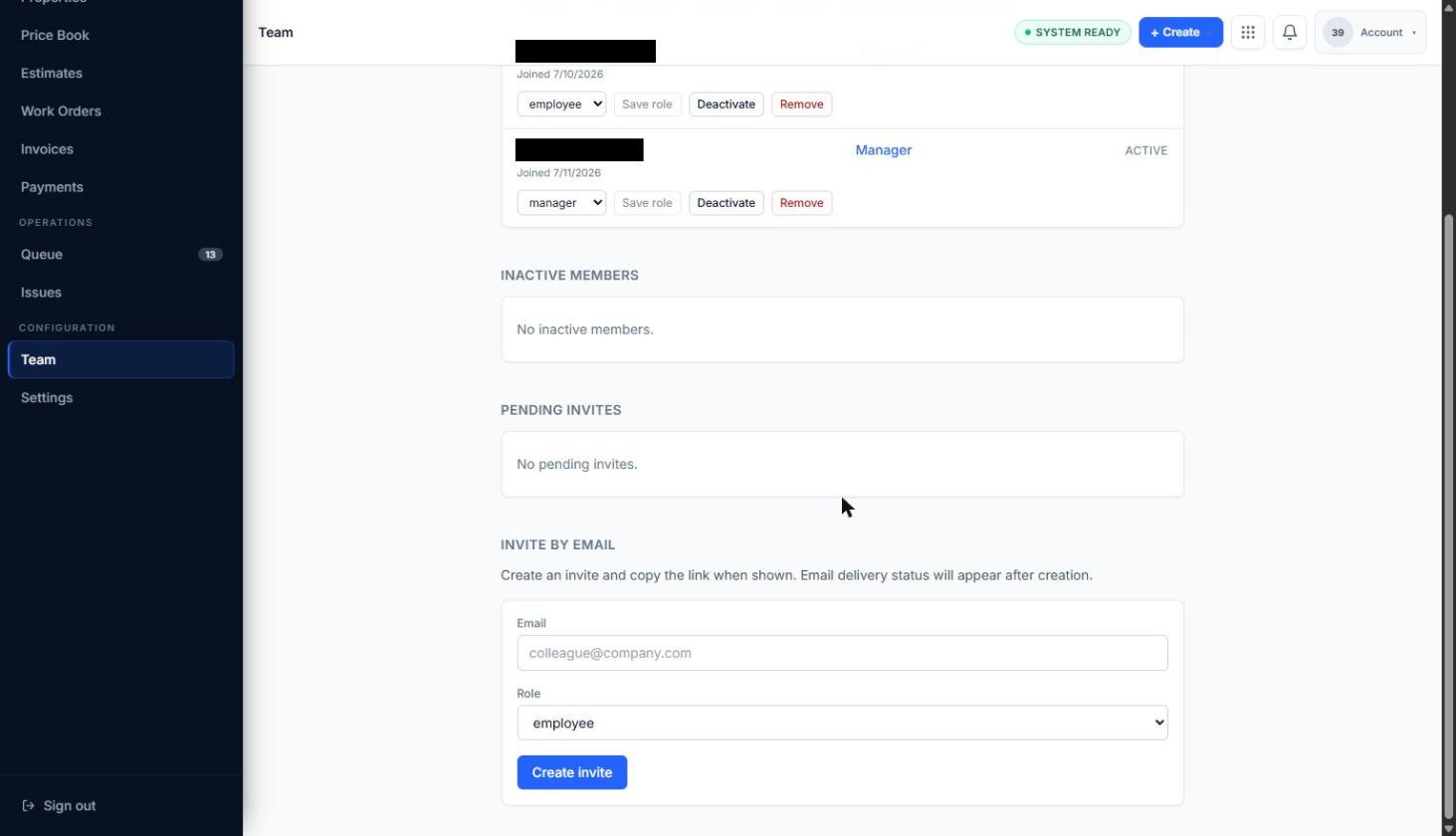
Inline Invite by email form.
-
On an existing member row, review the role selector, Save role, Deactivate, and Remove without selecting any of them.
Expected result
Section titled “Expected result”The operator understands what information is required to invite a new member (an email address and a role) and what controls exist to manage existing access, without having triggered those actions.
Verified portion
Section titled “Verified portion”- Inline Invite by email form visibility
- Email and Role fields
- Create invite control visibility
- Role options: owner, manager, employee, client
- Placeholder
colleague@company.com - Helper text about invite-link creation and delivery status after creation
- Visibility of Save role, Deactivate, and Remove on member rows
Unverified portion
Section titled “Unverified portion”- Invite was not submitted
- Invite delivery was not verified
- Invite-link or tokenized-URL behavior was not verified
- Seat billing was not verified
- Permission effects after role change were not verified
- Role change, deactivation, and removal were not executed
Warnings and notes
Section titled “Warnings and notes”- Submitting the invite form, changing a role, deactivating a member, or removing a member affects real access. None of these actions were performed in this capture.
- There is no separate invite dialog; the form is inline on Team.