
How to Review Team Members
This article documents a read-only walkthrough of the Team page for operators who want to check who has access, what role they are assigned, and whether an invite is outstanding, without changing anything.
Who this is for: Owners or staff reviewing membership before any access change.
Before you begin
Section titled “Before you begin”- An active operator session with visibility into the Configuration group.
-
Open Team from the Configuration group in the sidebar.
-
Scan the Active members list top to bottom, noting each member’s role label and status.
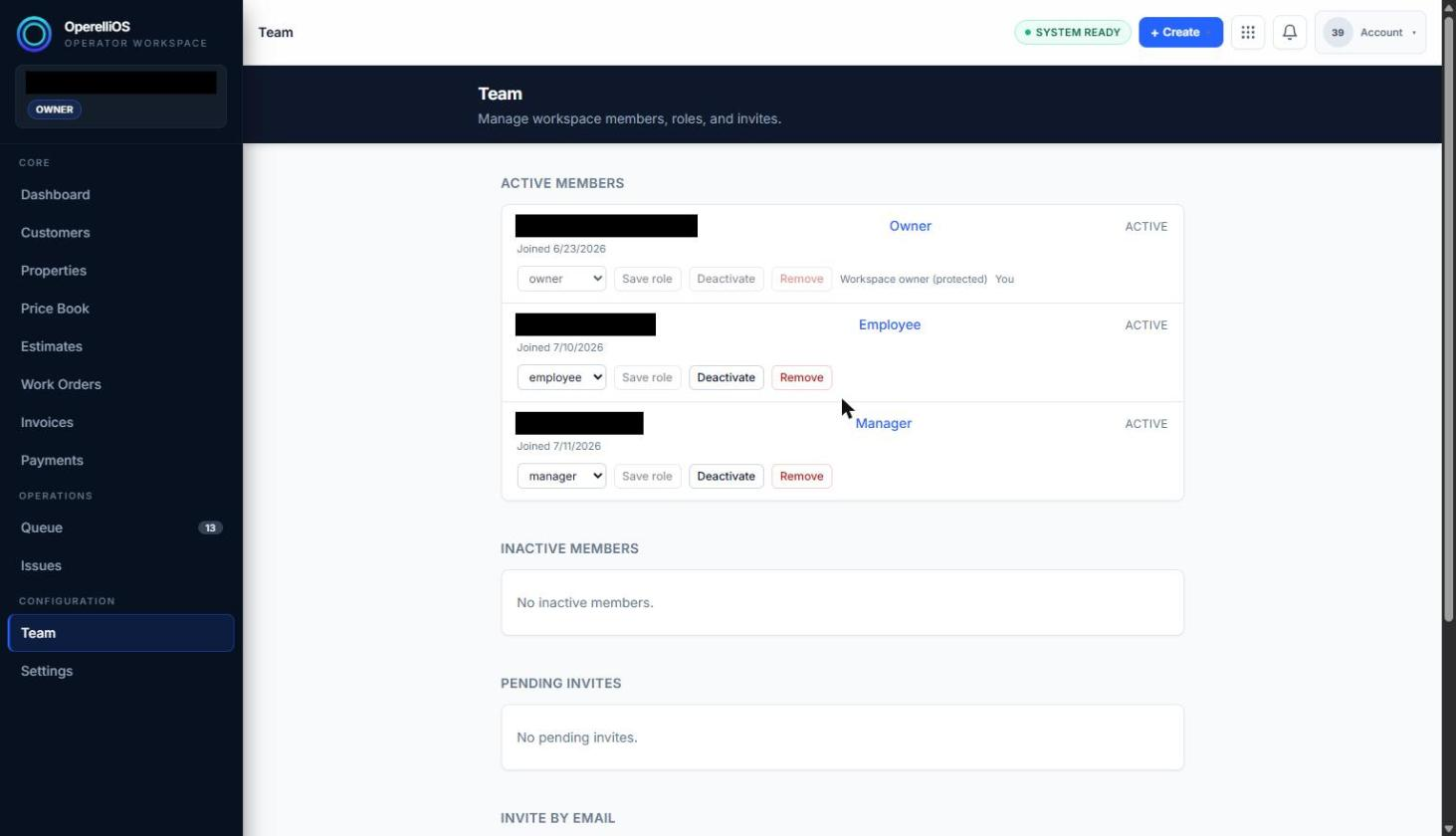
Reviewing the Active members list.
-
Note the protected owner row, which is marked as workspace owner (protected) and does not offer Deactivate or Remove.
-
Scroll to Inactive members and confirm whether any members are listed.
-
Scroll to Pending invites and confirm whether any invitations are outstanding.
-
Return to the top of the page, or navigate elsewhere in Configuration, once the review is complete.
Expected result
Section titled “Expected result”The operator finishes with a current picture of workspace membership, roles, and status, with no changes made to any member.
Warnings and notes
Section titled “Warnings and notes”- This review workflow intentionally avoids using the role dropdown, Save role, Deactivate, Remove, or Create invite.
- No separate member detail page exists; reviewing a member means reading the information already present in its row.
- This article does not claim that a role was changed, a member was removed or deactivated, permissions were changed, or access was reset.