
How to Set Up Your Business Profile
How to review and update the business identity and address information used on customer-facing documents.
Who this is for: Owners and admins.
Before you begin
Section titled “Before you begin”You are signed in with an Owner or Admin role.
-
Click the Account menu in the top right, then select Organization settings.
-
On the Profile page, review the Business identity section: Business display name, Public email, Phone, and an optional Website.
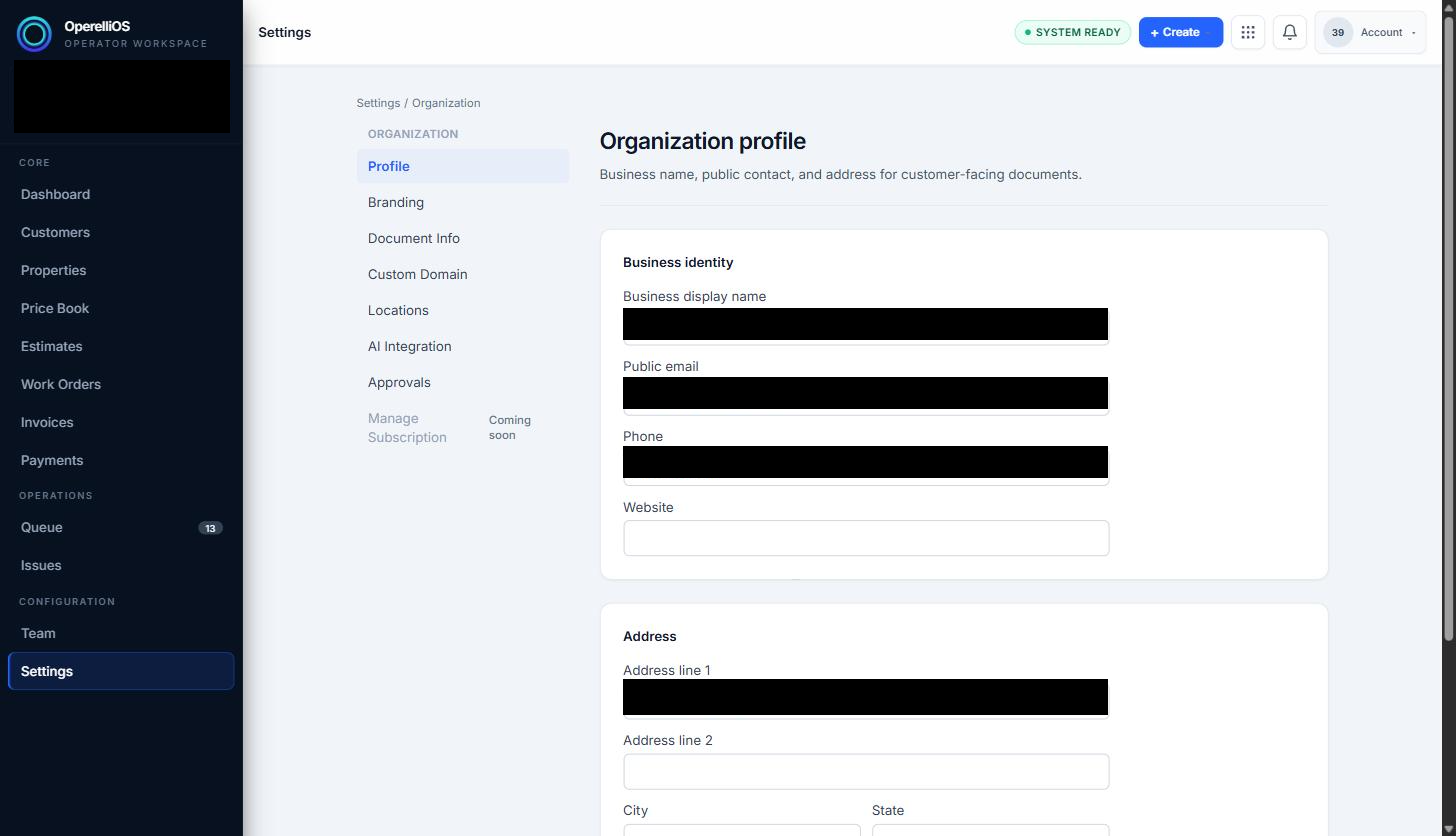
Business identity fields: your business name, public email, and phone. Field values are redacted here for privacy.
-
Scroll down to the Address section: Address line 1, Address line 2 (optional), City, State, Postal code, and Country.
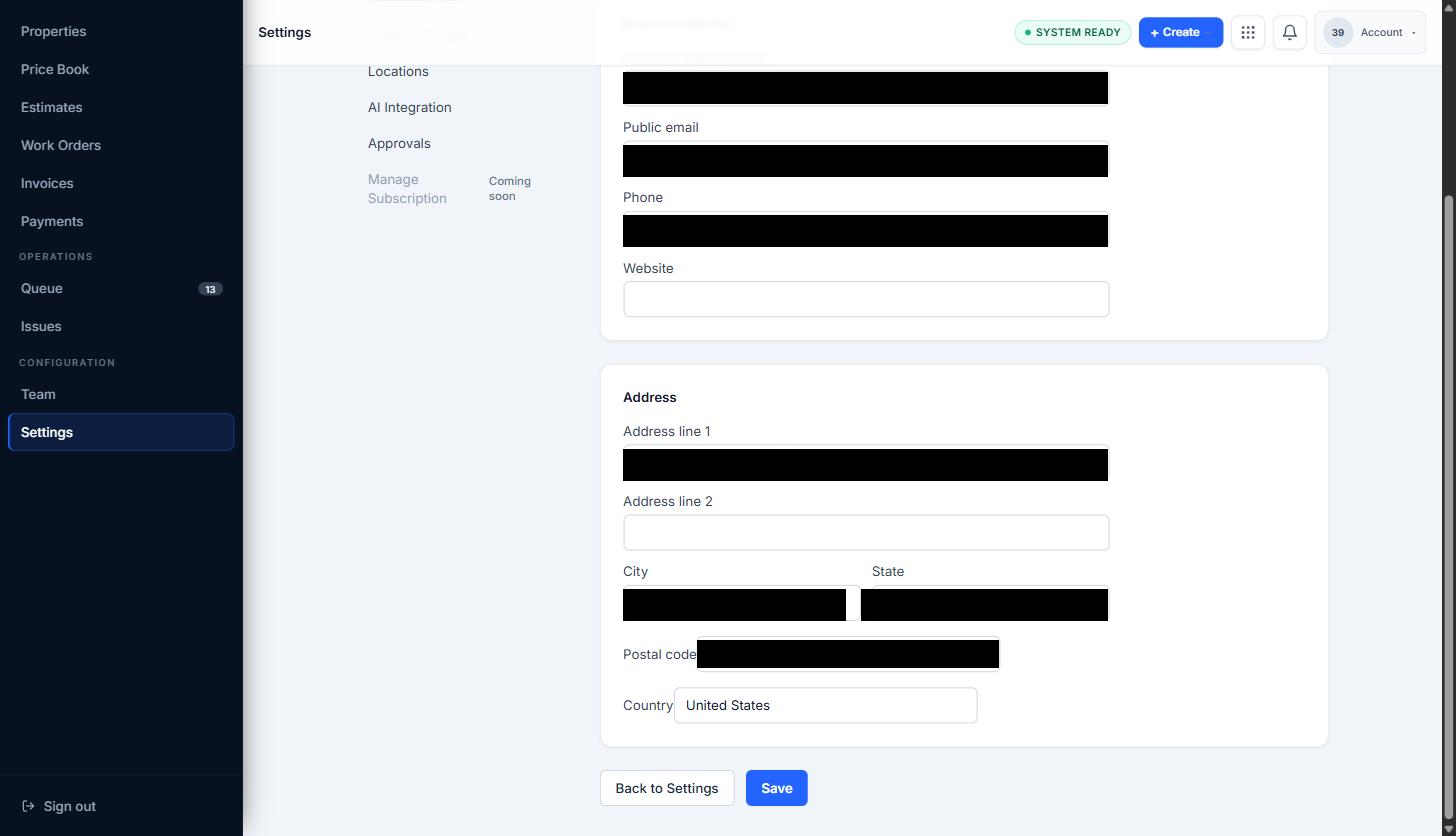
Address fields used on customer-facing documents. Field values are redacted here for privacy.
-
Update any fields as needed, then click Save. Click Back to Settings instead if you want to leave without saving changes.
Expected result
Section titled “Expected result”Your business name, contact details, and address are accurate and ready to appear on customer-facing documents.
Common issues
Section titled “Common issues”Changes are not applied unless you click Save. The Website field can be left blank. Other tabs under Organization settings (Branding, Document Info, Custom Domain, AI Integration, Approvals) are separate from this Profile page and are not covered here.