
How to Find a Price Book Item
Quickly locate a specific service in your Price Book using search, status, and category controls.
Who this is for: Owners or staff working with a growing list of services.
Before you begin
Section titled “Before you begin”- You are signed in to your OperelliOS workspace.
- You have at least one item in your Price Book.
-
On the Price Book page, type into the Search by name, code, or category box.
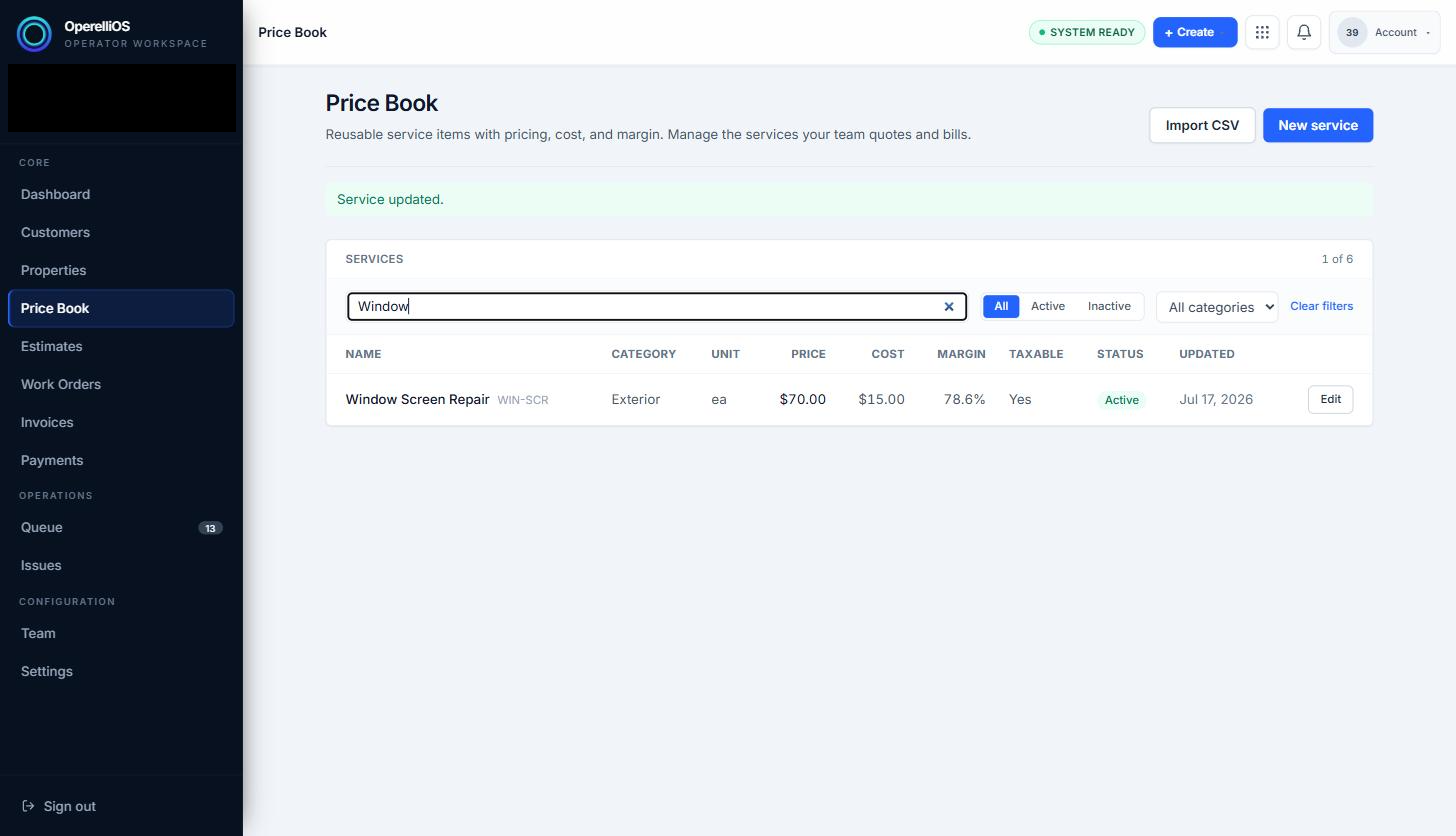
Typing a search term filters the list live; the count updates and a Clear filters link appears.
-
Use the All / Active / Inactive toggle to filter by status.
-
Use the All categories dropdown to filter by a specific category.
-
Click Clear filters (appears once a search or filter is active) to return to the full list.
Expected result
Section titled “Expected result”The list narrows to only the items matching your search text, status, and/or category, and the item count label updates to reflect how many results are shown out of the total.
Common issues
Section titled “Common issues”- Search matches on name, code, or category — if you search a term that does not appear in any of those fields, no rows will match.
- The Clear filters link only appears once a search term or non-default filter is applied.