
How to Record Work Progress and Completion
Move a Work Order through the directly observed progress actions: mark it started, then mark it complete. You may also update Scope of Work while the Work Order is open.
Who this is for: Owners or staff who record delivery progress on a scheduled job.
Before you begin
Section titled “Before you begin”- An existing Work Order in a Scheduled or Ready to schedule state.
- Permission to change Work Order status in your workspace.
-
Open the Work Order you want to update.
-
Select the action to mark the Work Order as in progress. The status updates to In progress.
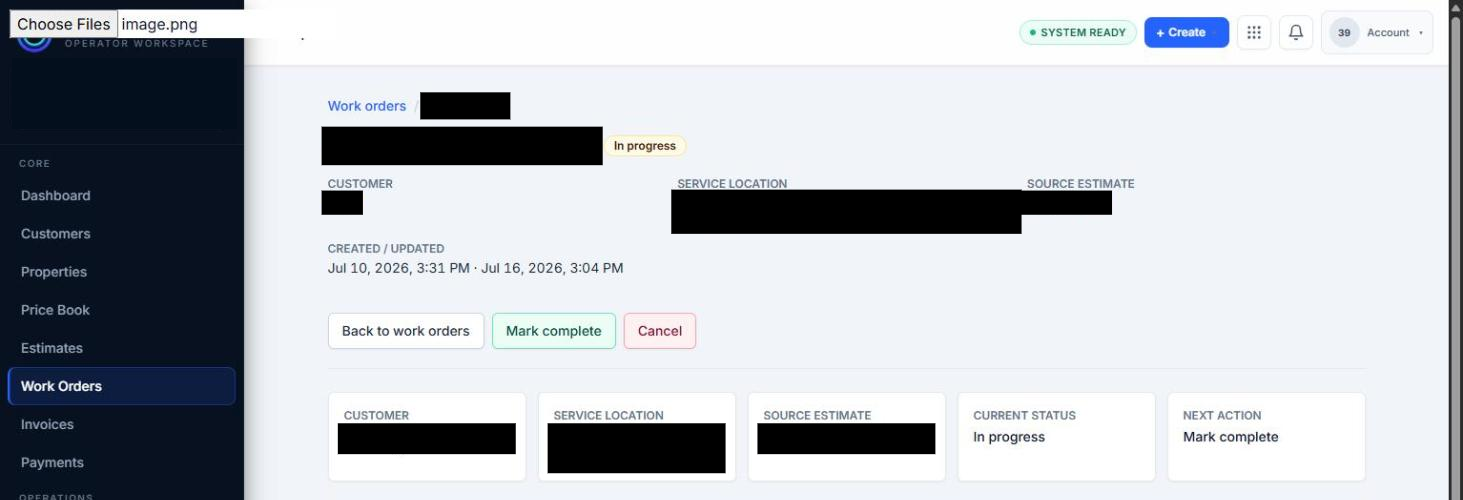
A synthetic Work Order marked as in progress.
-
When the work is finished, select the action to mark the Work Order as complete. The status updates to Completed.
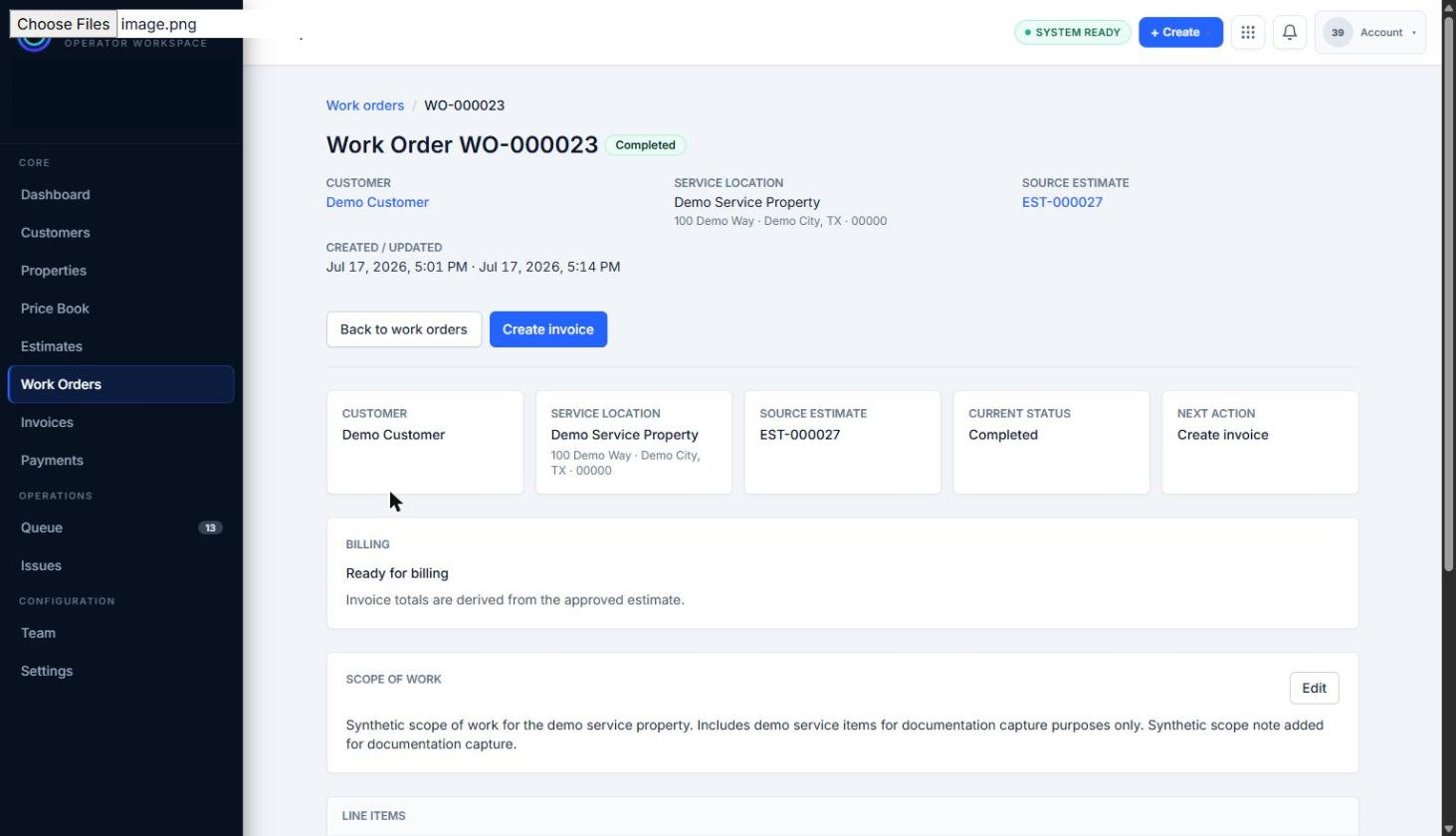
A synthetic Work Order marked as complete.
-
Save any Scope of Work updates before marking the Work Order complete when you need the scope text to reflect what was performed on site.
Expected result
Section titled “Expected result”The Work Order status changes from Scheduled to In progress, then from In progress to Completed. These transitions were directly executed and observed on a synthetic Work Order during capture.
Warnings and notes
Section titled “Warnings and notes”- Dedicated progress notes, completion notes, file or photo attachments, completion checklists, time tracking, signatures, and an explicit completion-date field were not observed during this capture and are not documented here.
- Completing a Work Order does not automatically create an Invoice. Invoice and Payment workflows will be documented separately.
- AI does not control completion or financial outcomes.