
How to Find and Open an Invoice
The Invoices area lists Invoices in the workspace with customer, property, source, status, due date, total, balance due, and next action. A search box filters the list. Status tabs filter by status label.
Who this is for: Owners or staff who locate an existing Invoice to review or update.
Before you begin
Section titled “Before you begin”- Access to the Invoices area.
- At least one existing Invoice.
-
Select Invoices from the workspace navigation.
-
Review the Financial Summary panel at the top when present (for example, Ready to Send, Outstanding Issued, Needs Follow-up counts).
-
Use the Search box to filter the list by Invoice number, customer, property, source, or status. Typing a customer name narrows the table to matching rows.
-
Use the status tabs (All, Draft, Issued, Unpaid, Partially paid, Paid, Overdue, Void) to filter by status label when needed.
-
Select an Invoice number from the list to open its detail view.
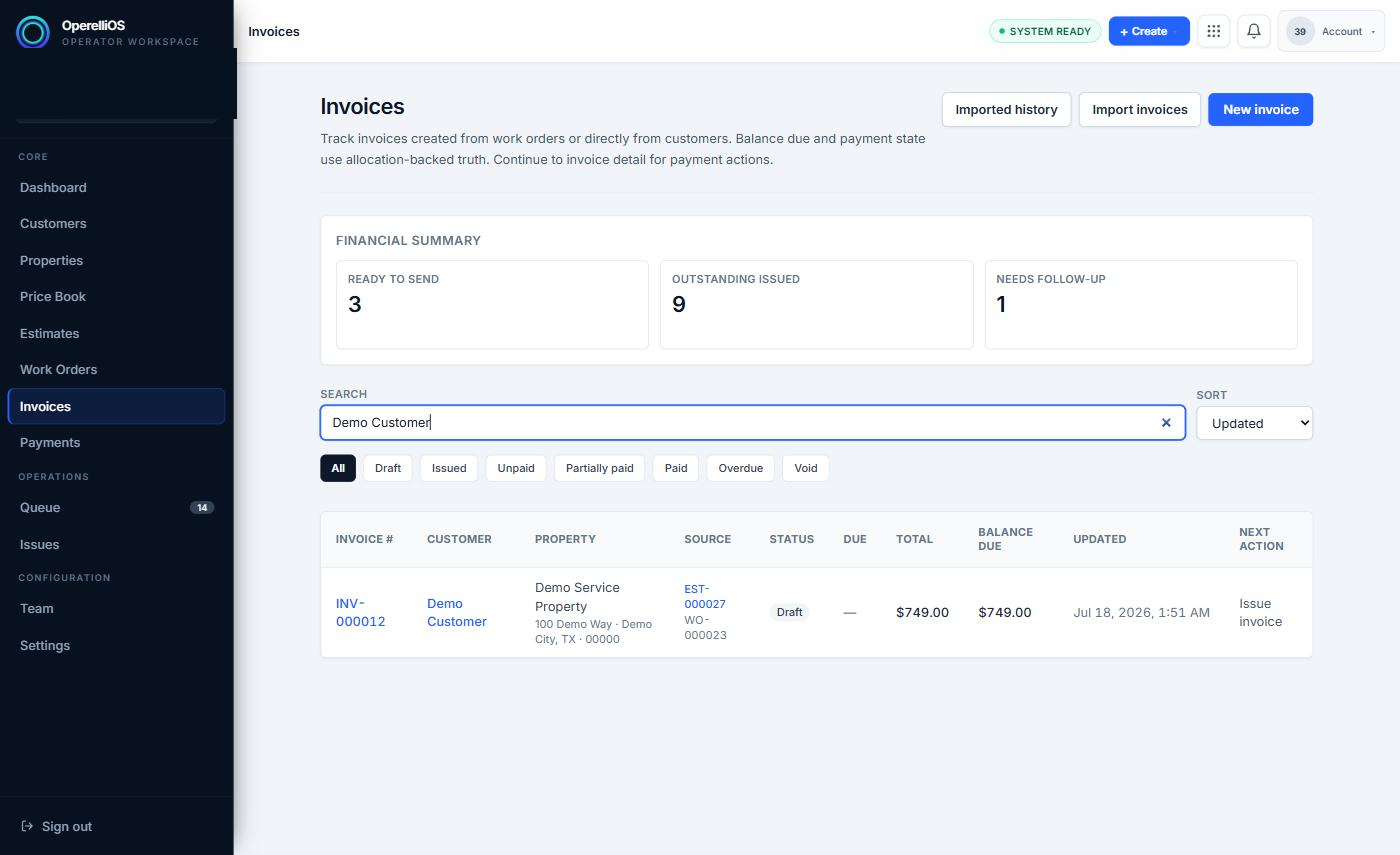
The Invoices list filtered by search to a synthetic Invoice.
Expected result
Section titled “Expected result”The Invoices list narrows to matching rows as you search, and selecting an Invoice number opens that Invoice’s detail view.
Warnings and notes
Section titled “Warnings and notes”- This article documents only the search box and status tabs directly captured.
- Advanced filters, saved views, bulk actions, exports, accounting reports, and collections workflows were not observed and are not documented here.
- Sorting was visible as a control but was not exercised as part of this capture.
- List controls such as New invoice or Import invoices are not documented as verified creation paths in this Help category.