
Understanding Work Order Statuses
Work Orders move through a defined set of statuses. This article lists statuses that were executed during capture and one status that was only observed on an existing record.
Who this is for: Owners or staff who track job progress by status.
Before you begin
Section titled “Before you begin”- Access to view Work Orders in your workspace.
Executed or captured transitions
Section titled “Executed or captured transitions”These statuses were directly executed and observed on synthetic Work Orders during capture:
- Ready to schedule
- Scheduled
- In progress
- Completed
- Cancelled
Observed only
Section titled “Observed only”- Invoiced — observed on an existing record only. The Invoiced transition was not executed in this capture. Invoice creation steps are not documented here.
-
Review a Work Order in the Scheduled status.
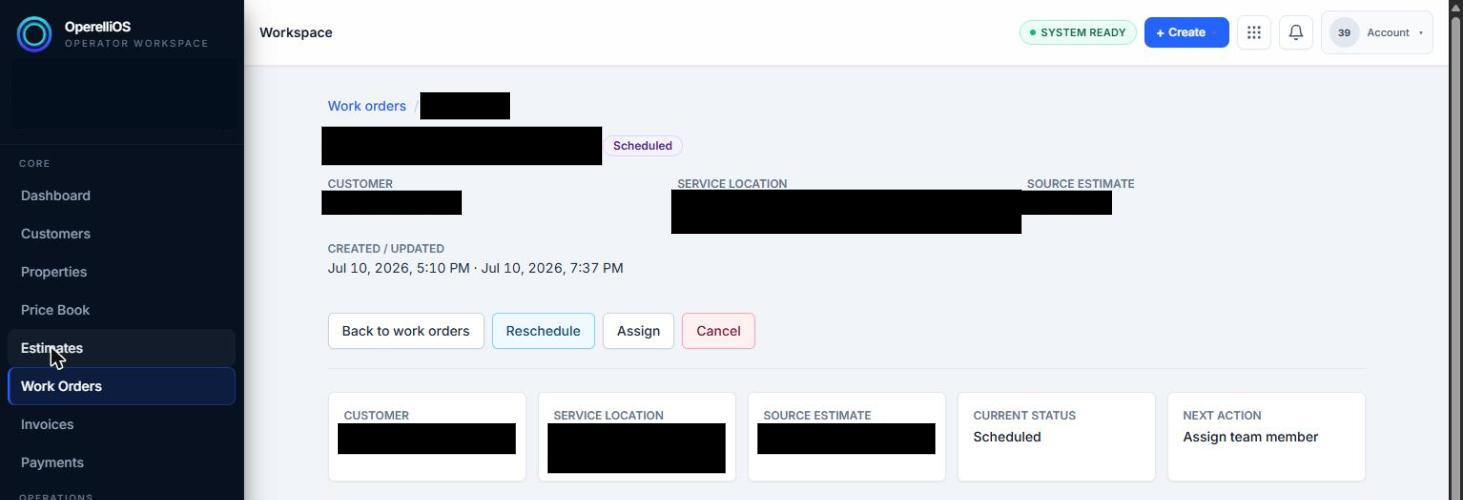
A Work Order shown in the Scheduled status.
-
Review In progress and Completed states after Mark started and Mark complete.
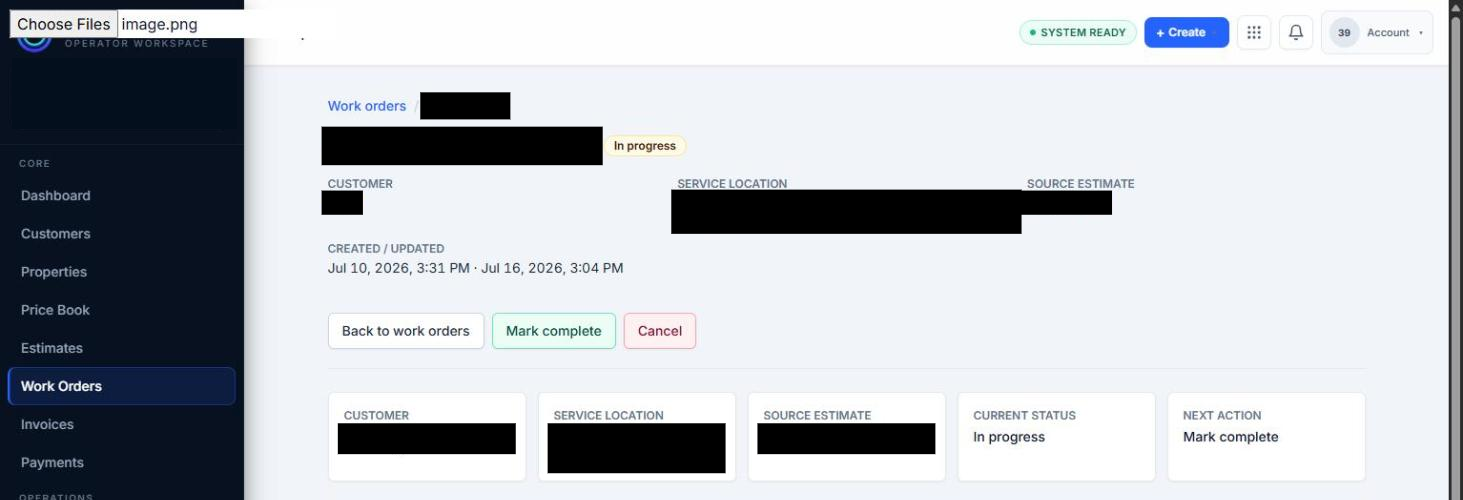
A Work Order shown in the In progress status.
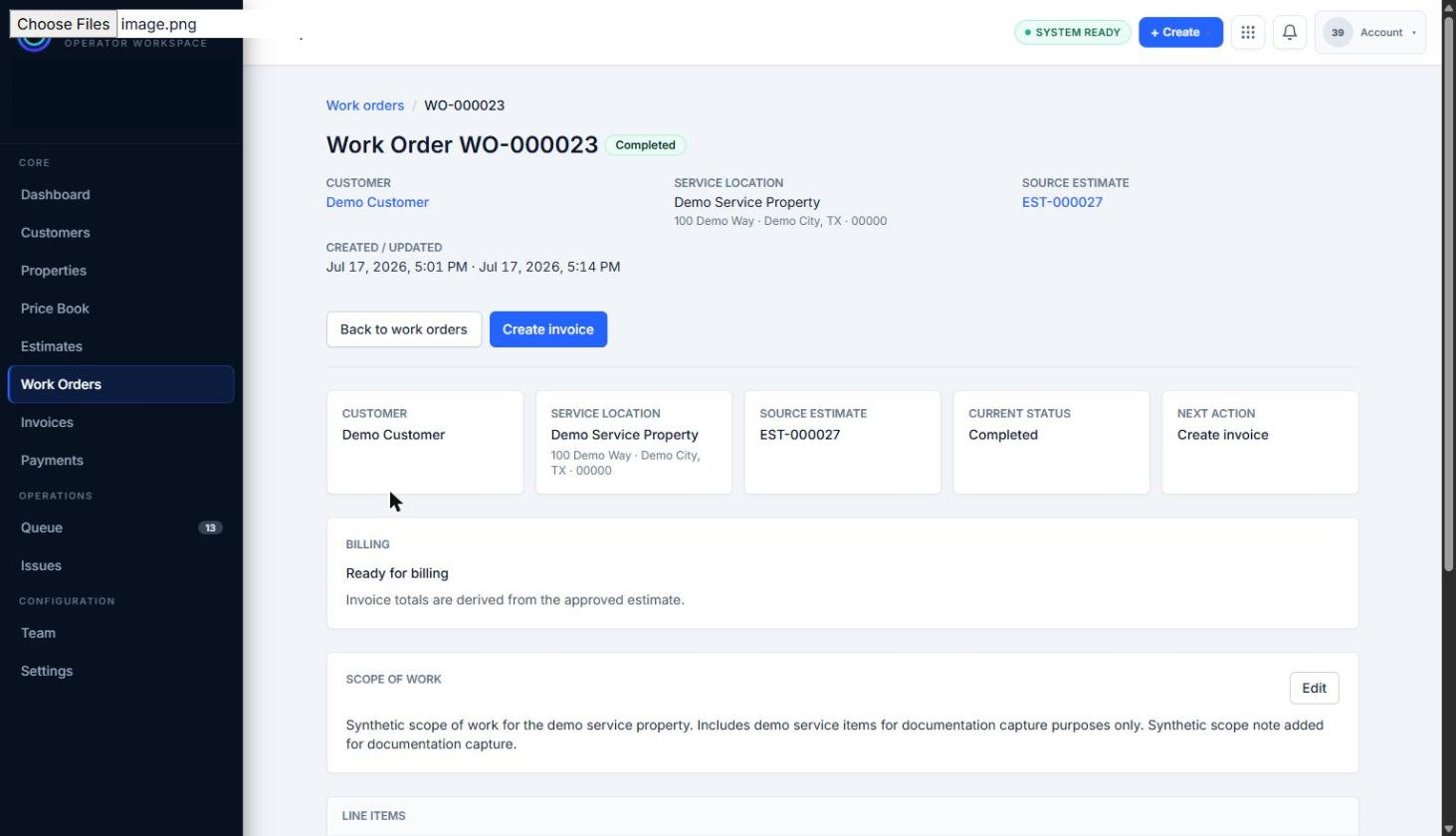
A Work Order shown in the Completed status.
-
Review a Cancelled Work Order.
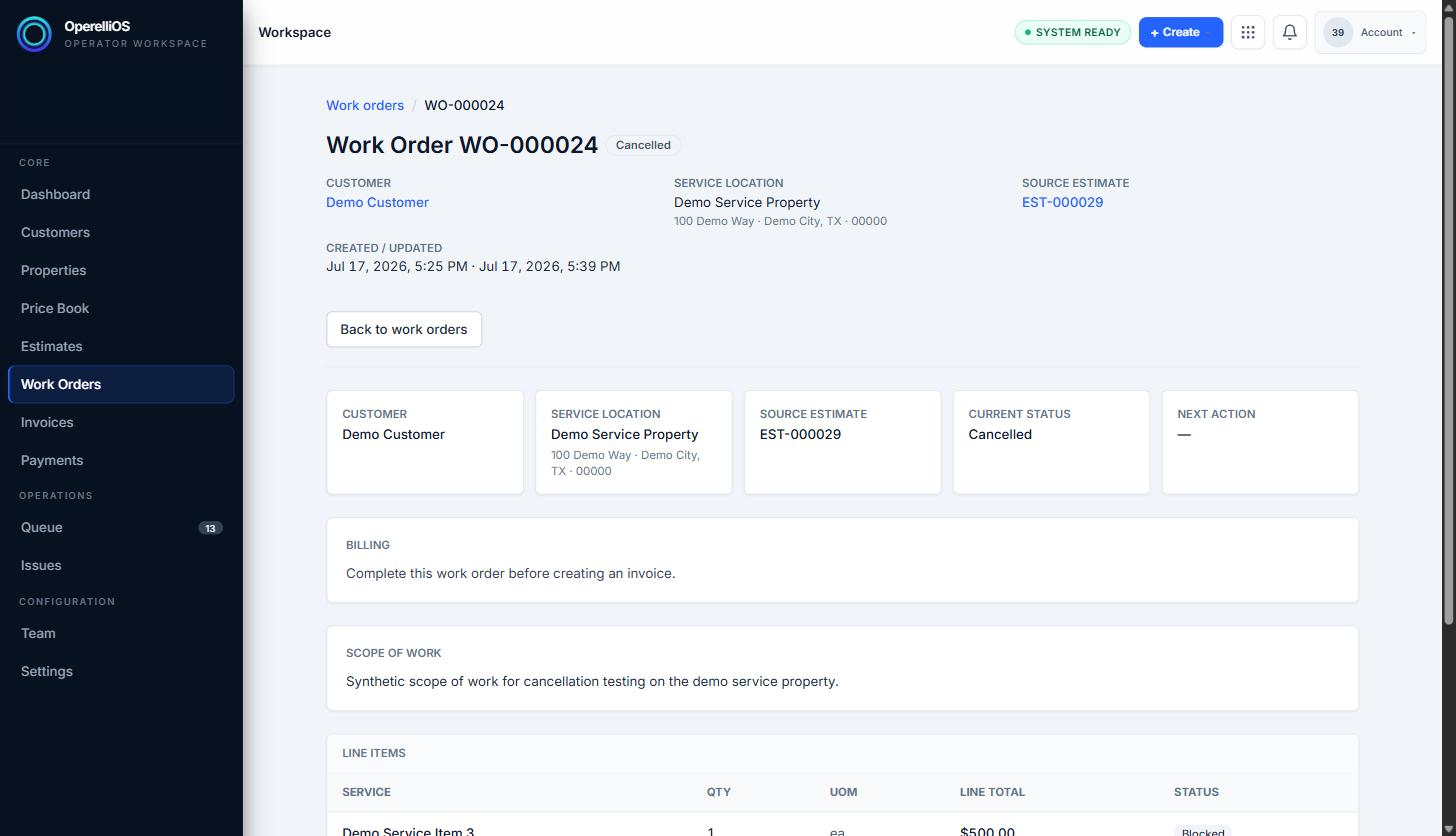
A Work Order shown in the Cancelled status with a fully readable Cancelled badge.
-
Note that Invoiced may appear on existing records without this Help batch documenting how that transition is performed.
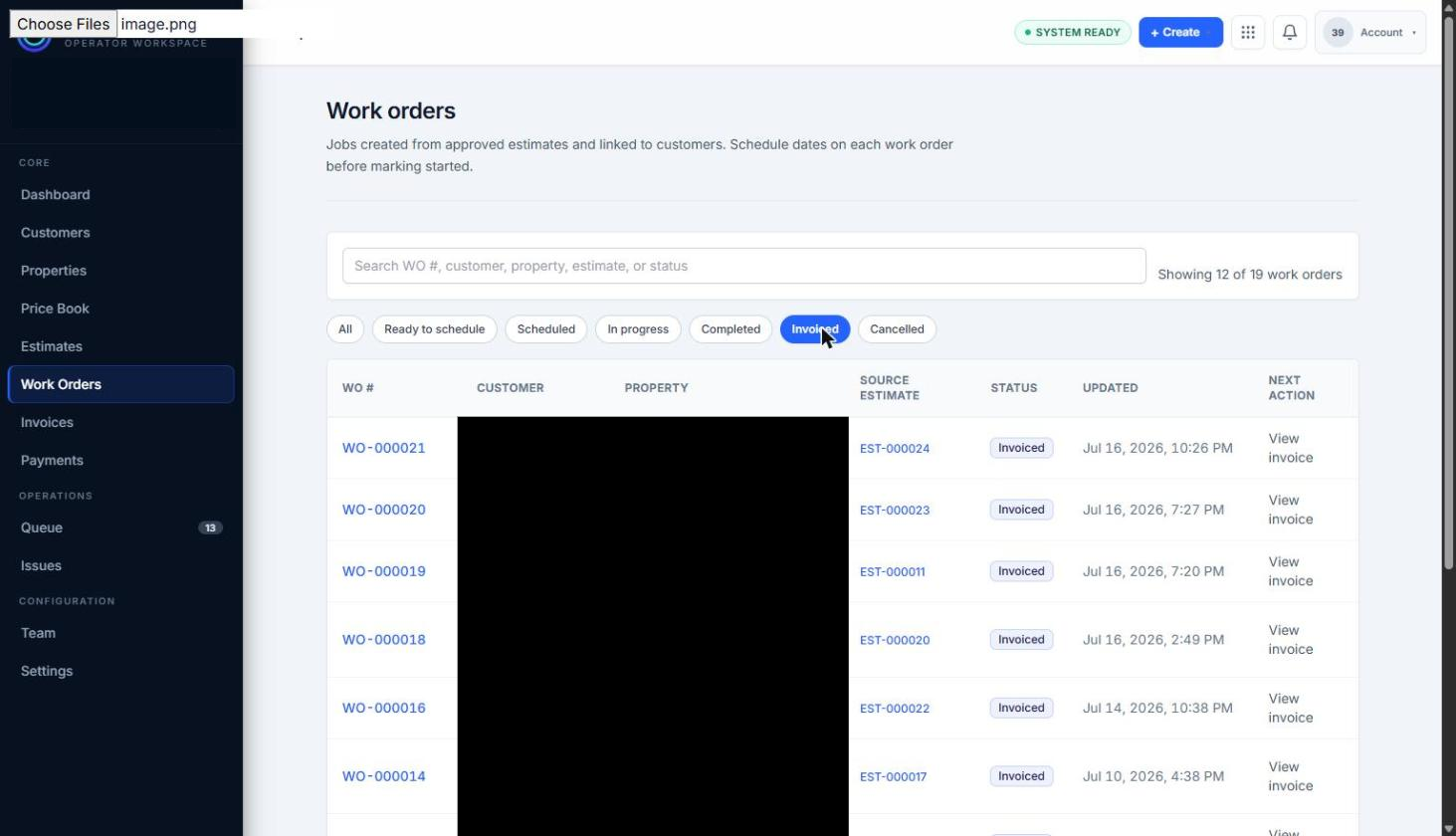
Invoiced status observed on existing records. This transition was not executed in this capture.
Expected result
Section titled “Expected result”You can distinguish statuses that were executed during capture from Invoiced, which was only observed.
Warnings and notes
Section titled “Warnings and notes”- Completing a Work Order does not automatically create an Invoice.
- This article does not include Invoice or Payment instructions. Those workflows will be documented in their own Help categories.
- AI does not control status transitions or financial outcomes.