
Understanding the Dashboard and Work Queue
How to read the Business Dashboard summary and use the Queue to find outstanding action items.
Who this is for: All operators.
Before you begin
Section titled “Before you begin”You are signed in to an OperelliOS workspace.
-
Open the Dashboard tab to see a Business Brief, a Money Summary (Outstanding A/R, Overdue A/R, Ready to Invoice, Paid This Period, Pending Approval), and a Today’s Action List.
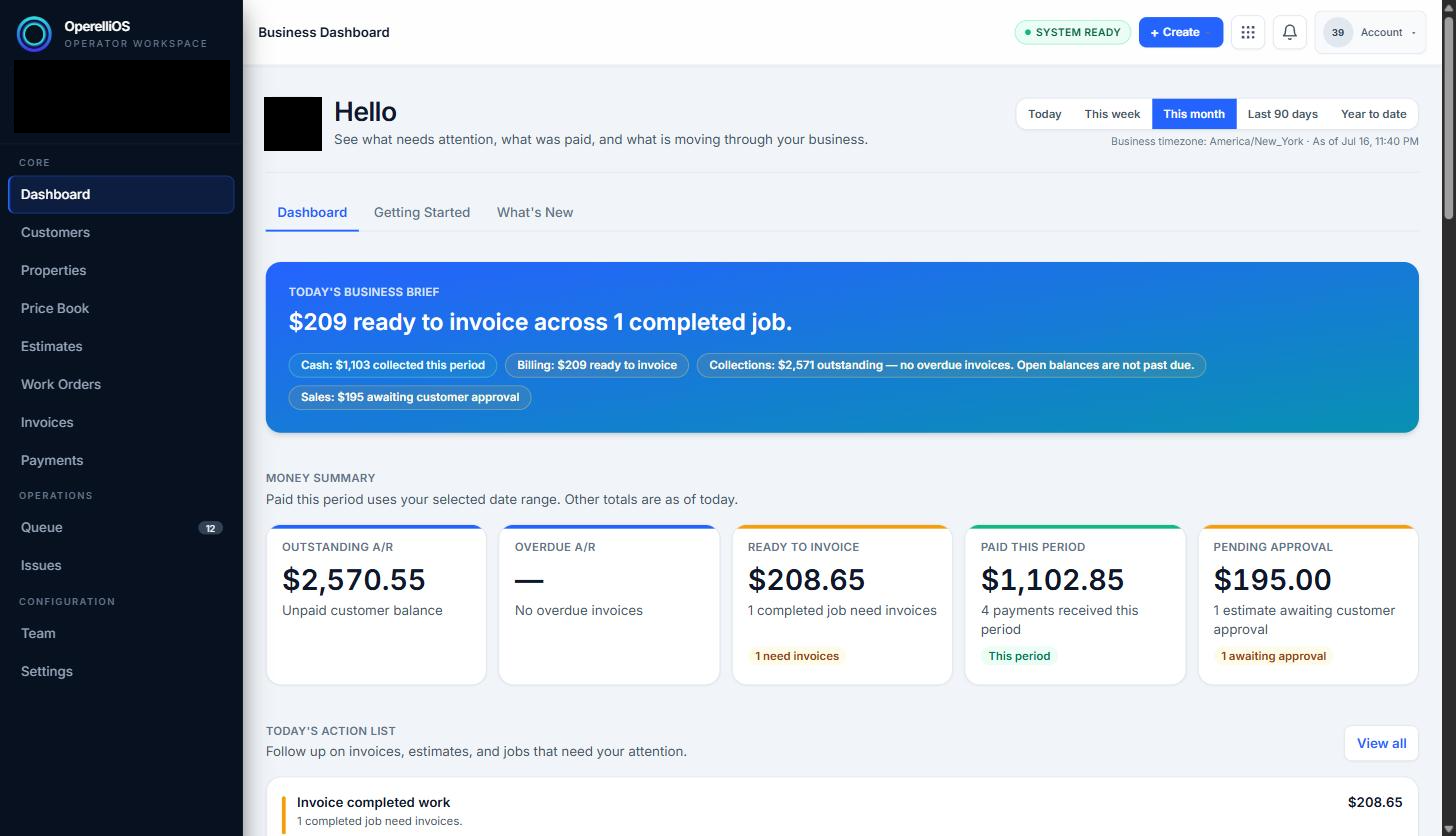
The Business Dashboard summarizes money movement and today’s action items. Business name and avatar are redacted for privacy.
-
Use the date range tabs (Today, This week, This month, Last 90 days, Year to date) above the Business Brief to change the period the summary covers.
-
Open Queue from the left navigation, under Operations, to see an action-focused list separate from the Dashboard summary.
-
The Queue is organized into tabs: Needs action, Ready to progress, and Billing follow up. Select Needs action to see items such as sent estimates awaiting a customer response.
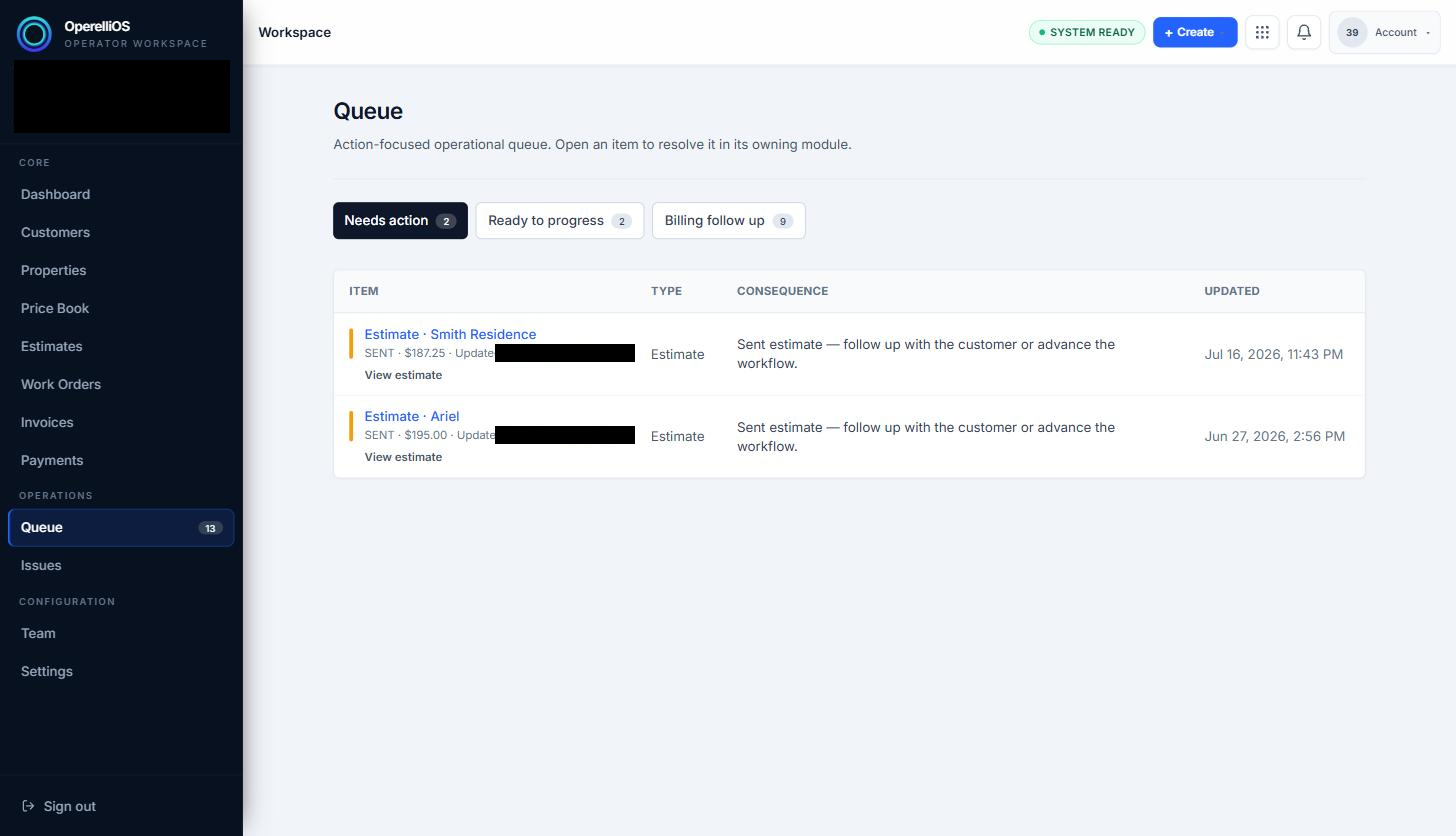
The Needs action queue lists items such as sent estimates awaiting follow-up. Business name and some record details are redacted for privacy.
-
Click a listed item’s link, such as “View estimate,” to open it directly in its owning module.
Expected result
Section titled “Expected result”You can read the Dashboard money summary for a chosen date range and use the Queue to locate items that need attention.
Common issues
Section titled “Common issues”Money Summary values change depending on the selected date range. The Billing follow up queue tab relates to Invoices and Payments; those modules are not covered as verified walkthroughs in this Help Center batch.