
How to Find and Open a Payment Record
The Payments area (Payments Received) lists every Payment Record with its date, payment number, type, customer, invoice, mode, reference, amount, and status. A search box, mode filter, status tabs, and a date range are available to narrow the list.
Who this is for: Owners or staff who need to locate an existing Payment Record.
Before you begin
Section titled “Before you begin”- Access to the Payments area.
- At least one existing Payment Record.
-
Select Payments from the workspace navigation.
-
Use the status tabs (All payments, Invoice payments, Recorded, Void) to filter by type or status.
-
Use the Search box to filter by customer, invoice, reference, or payment id.
-
Use the Mode dropdown to filter by payment mode, or the From / To date fields to filter by date range.
-
Select a Payment # from the list to open its detail view.
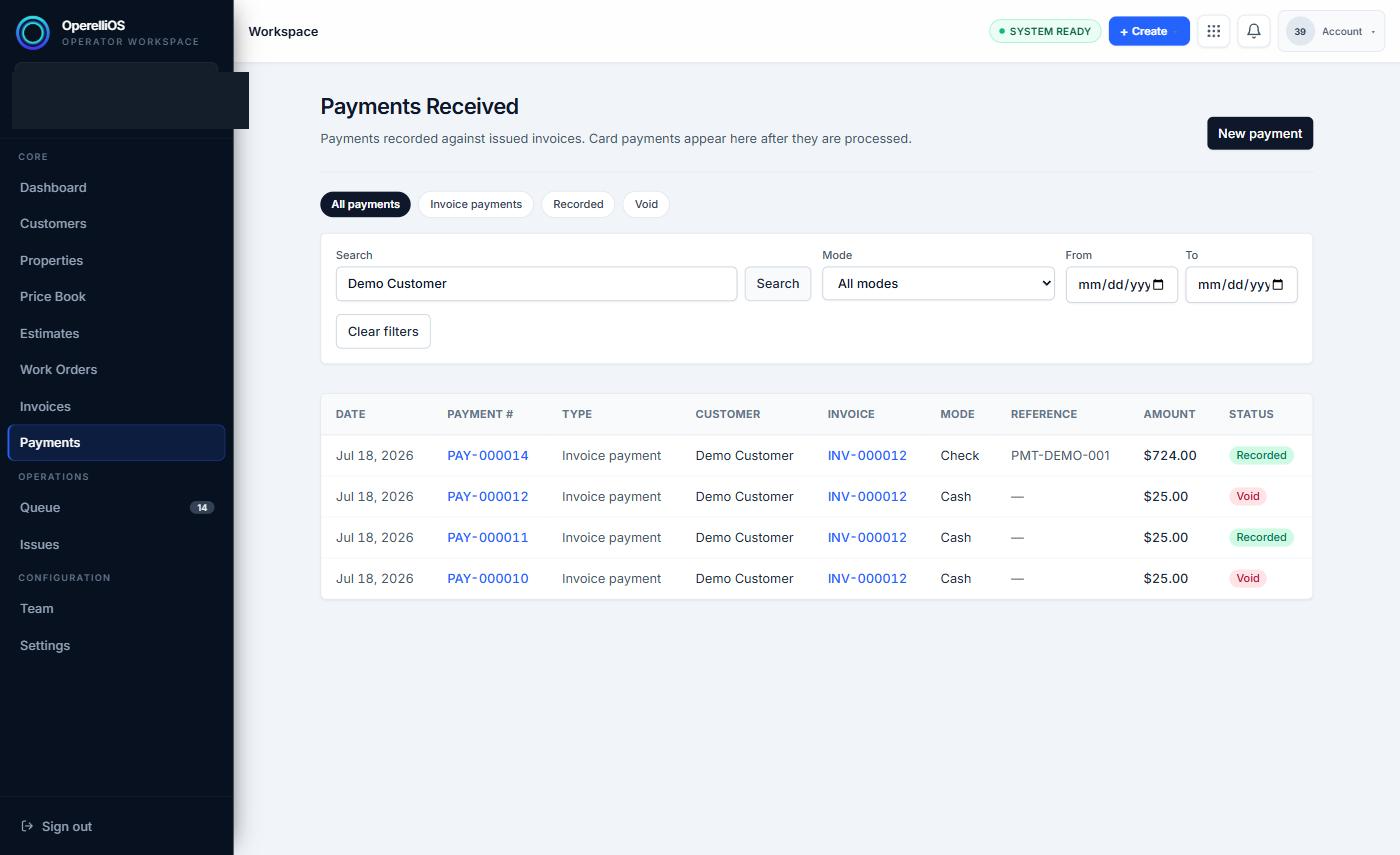
The Payments Received list, filtered by search to a synthetic customer’s records.
Expected result
Section titled “Expected result”The Payments list narrows to matching rows as you search or filter, and selecting a Payment # opens that Payment Record’s detail view.
Warnings and notes
Section titled “Warnings and notes”- This article documents only the search box, mode filter, status tabs, and date range directly captured.
- Exports, saved views, accounting reports, reconciliation reports, and collections workflows were not observed and are not documented here.
- Sorting behavior was not exercised.