
How to View and Update a Payment Record
Opening an existing Payment Record shows its full detail: payment number, status, amount, received date, payment mode, reference, customer, property, method details, and an Invoice Allocations table. In the product surface reviewed for this capture, no editable fields or Edit control were found on a saved Payment Record.
Who this is for: Owners or staff who need to review a saved Payment Record.
Before you begin
Section titled “Before you begin”- An existing synthetic Payment Record.
-
Open a Payment Record from the Payments list.
-
Review the Payment Summary: Payment #, Amount, Received Date, Payment Mode, Reference, Customer, Property, and Method Details.
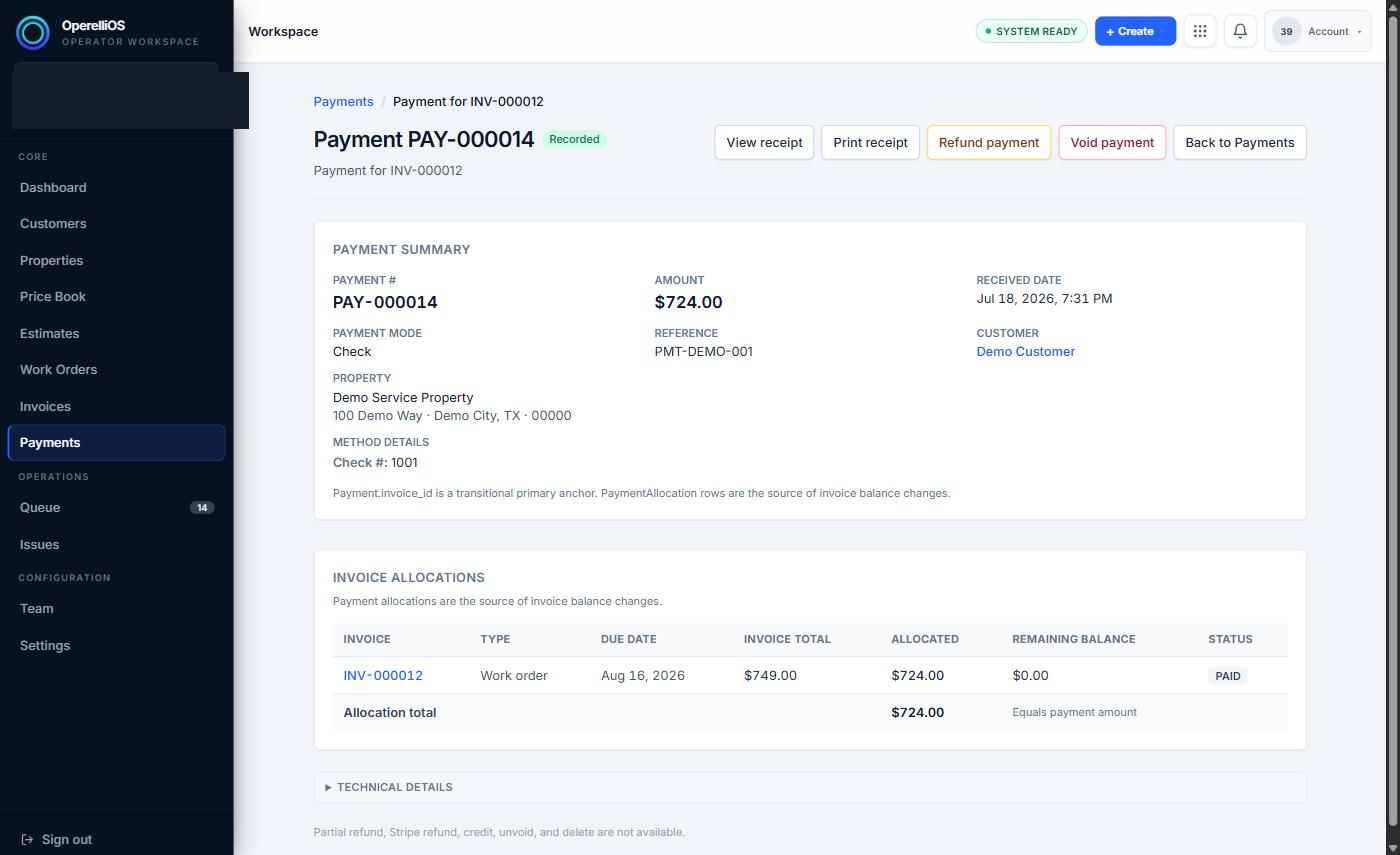
A Recorded Payment Record detail view with summary fields and invoice allocation.
-
Review the Invoice Allocations table, showing the invoice(s) the payment was applied to and each invoice’s resulting balance and status.
-
On a pre-existing Void Payment Record, review Void Reason and Voided At when present. The Void transition itself was not executed in this capture.
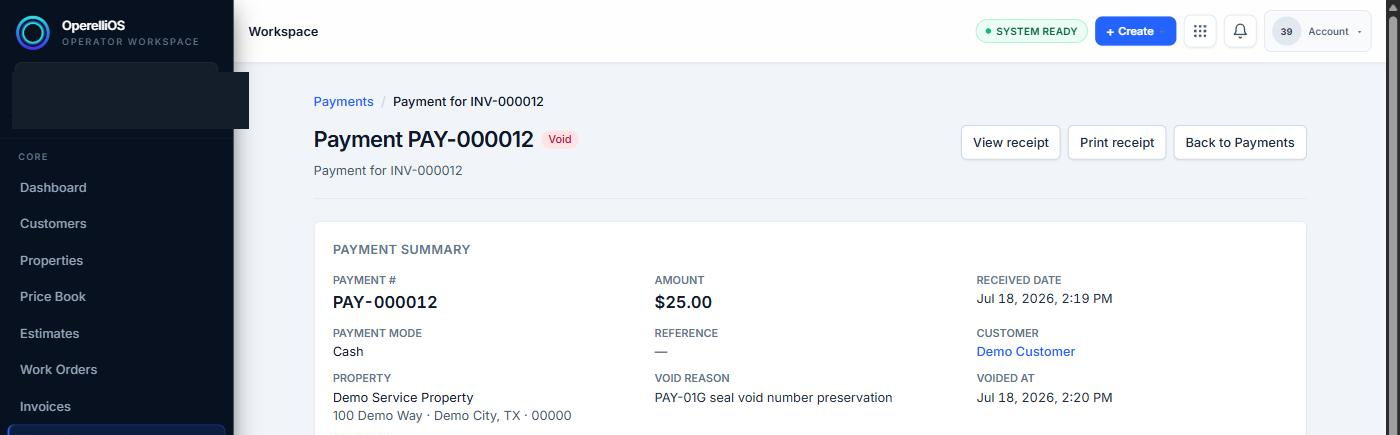
A pre-existing Void Payment Record observed for review only.
Expected result
Section titled “Expected result”A read view of the Payment Record and its invoice allocation(s). No update action was available to test in this capture.
Verified portion
Section titled “Verified portion”Opening an existing Payment Record and reviewing its linked Invoice, customer, amount, method, and allocation was directly observed for both a Recorded and a Void synthetic Payment Record.
Unverified portion
Section titled “Unverified portion”No directly editable field or Edit control was found on the Payment Record detail view in this capture. Making and saving a safe synthetic update could not be demonstrated.
Warnings and notes
Section titled “Warnings and notes”- The Payment Record detail surface reviewed exposes View receipt, Print receipt, and (for a Recorded payment) Refund payment and Void payment as visible actions, alongside a note that partial refund, Stripe refund, credit, unvoid, and delete are not available.
- Refund and Void controls are visible boundaries only in this Help batch. They were not executed.
- Do not claim field editing, deletion, void execution, refunds, reversals, chargebacks, accounting adjustments, or post-settlement edits from this article.