
How to View and Update an Invoice
Opening an existing Invoice shows its full detail: bill-to customer, service property, source references, invoice details, line items snapshot, financial snapshot, payment history, notes and terms, and attachment controls. While an Invoice is in the Draft status, its due date is directly editable and can be saved.
Who this is for: Owners or staff who review a Draft Invoice and set a due date before issuing.
Before you begin
Section titled “Before you begin”- An existing synthetic Invoice in the Draft status.
-
Open an existing Invoice from the Invoices list.
-
Review the Bill To, Service/Property, and Source cards.
-
In the Invoice Details card, select the due date field and enter a date. Select Save due date.
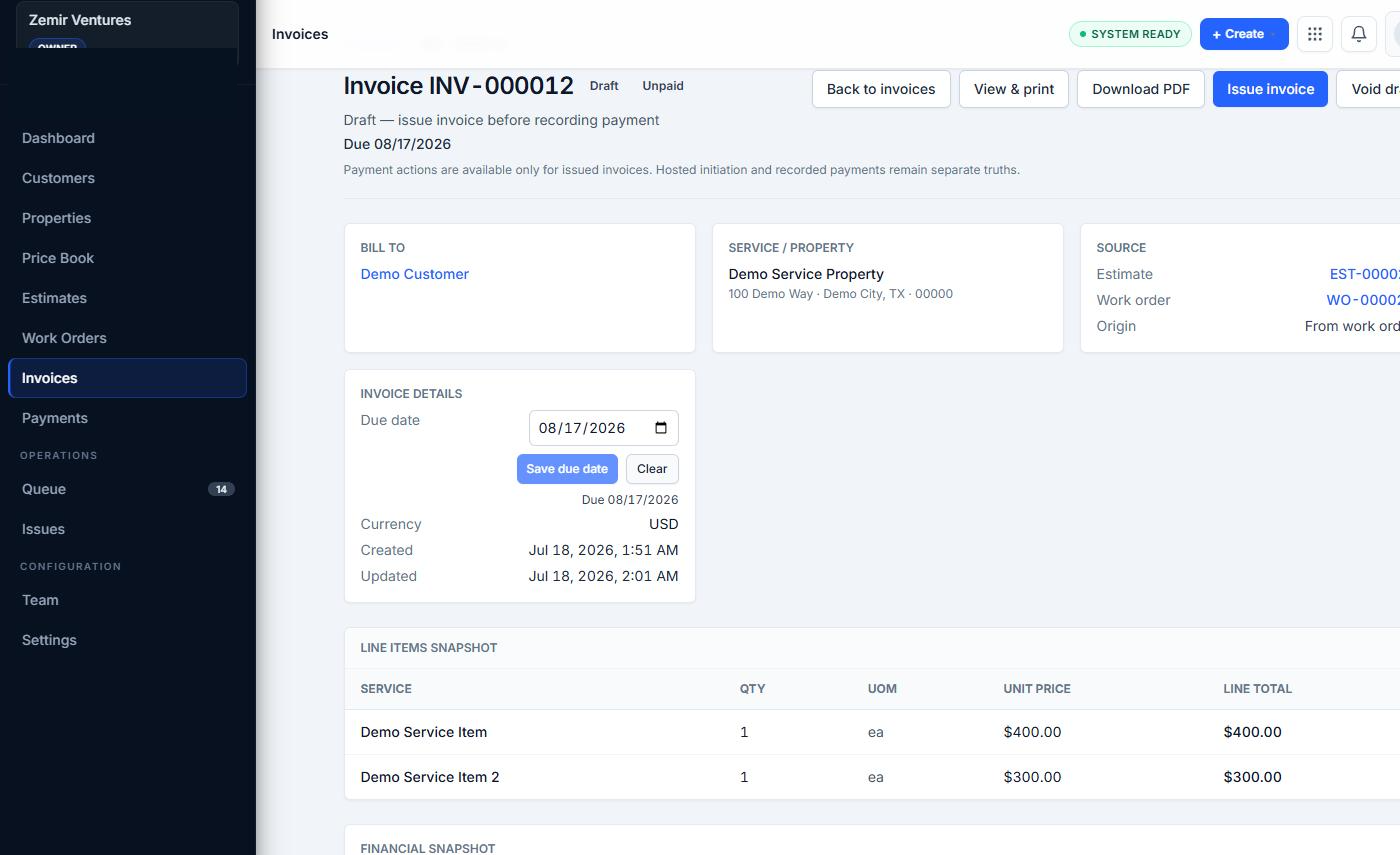
Editing the due date on a Draft Invoice.
-
Confirm the saved due date appears next to the invoice title and in the Invoice Details and Financial Snapshot sections.
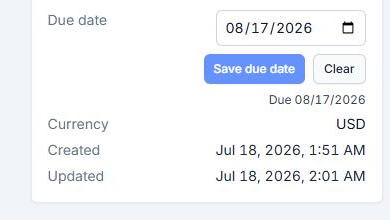
The Invoice Details card after saving a due date.
-
Review the linked customer, property, and source Work Order/Estimate links for accuracy.
Expected result
Section titled “Expected result”The due date updates and persists, visibly reflected in the invoice header, the Invoice Details card, and the Financial Snapshot due date row after the saved change is reflected.
Warnings and notes
Section titled “Warnings and notes”- The due date was the only directly editable field found on the Invoice detail view in this capture.
- The line items snapshot did not expose an edit control in the product surface reviewed; it reflects values carried over from the source Work Order or Estimate.
- Deletion, voiding, refunds, payment reversal, accounting adjustments, and post-payment edits were not directly observed and are not documented here.
- Permission-based behavior for other roles was not tested.
- Do not modify a finalized or paid real financial record while following this Help article.