
Understanding Team
The Team surface opens from the Team link in the Configuration group. It presents a single-page list of workspace members grouped into Active members, Inactive members, and Pending invites, followed by an Invite by email form. There is no separate member detail page; each member row contains inline review and management controls.
Who this is for: Owners or staff who need to see who has workspace access and what role labels are shown.
Before you begin
Section titled “Before you begin”- An active operator session with visibility into the Configuration group.
-
Open the sidebar and select Team under Configuration.
-
Review the Active members list. Each row shows an email address (or identifier), a role label (for example Owner, Manager, or Employee), a status label (Active), and a Joined date.
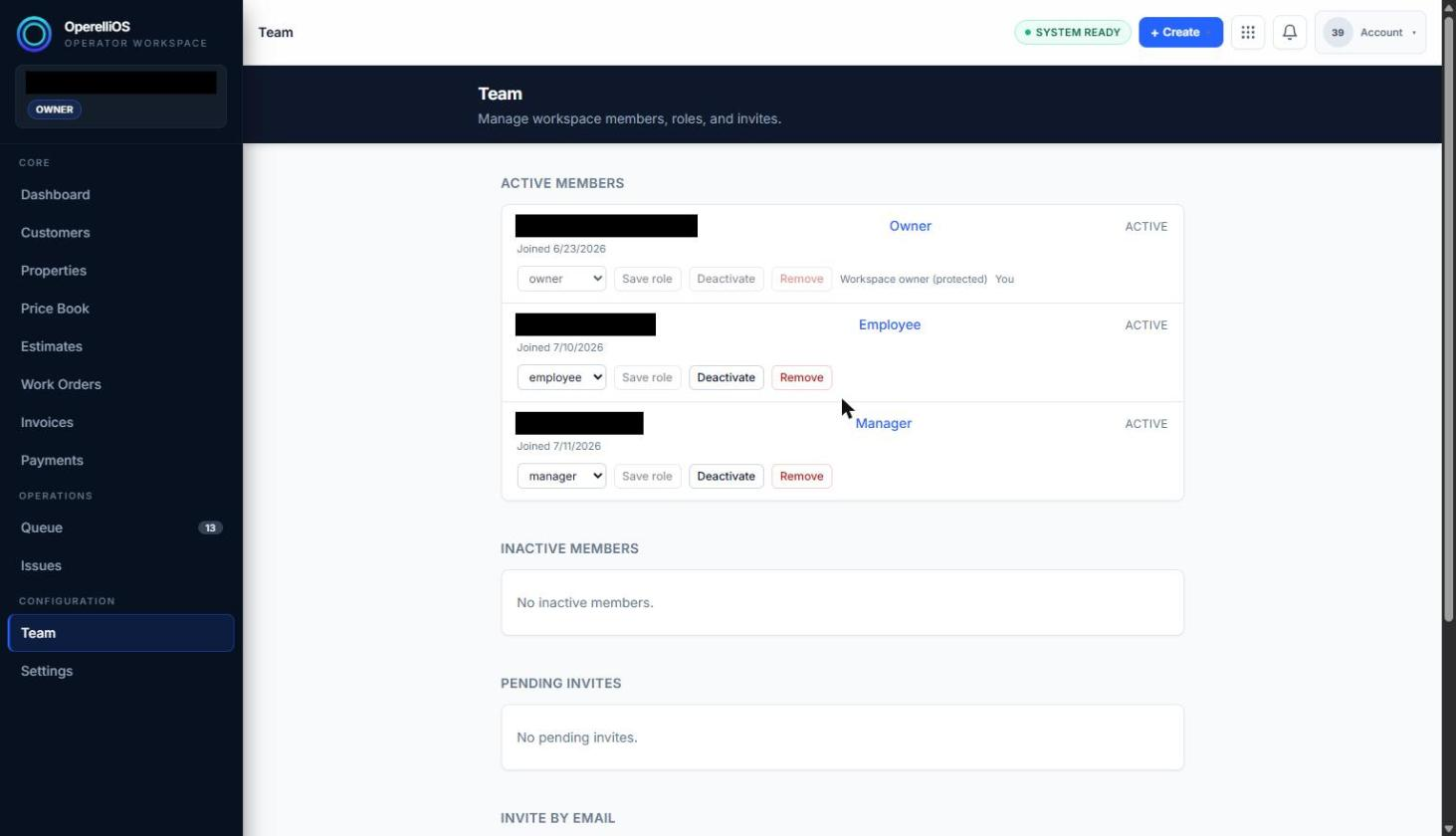
Active members region on Team.
-
Note that each active row also shows an inline role selector, a Save role button, a Deactivate button, and a Remove button. The protected owner row disables Deactivate and Remove and shows a protected-owner label.
-
Review the Inactive members region, which lists inactive members or shows No inactive members.
-
Review the Pending invites region, which lists outstanding invitations or shows No pending invites.
-
Review the Invite by email section, which contains an email field, a role selector, and a Create invite button.
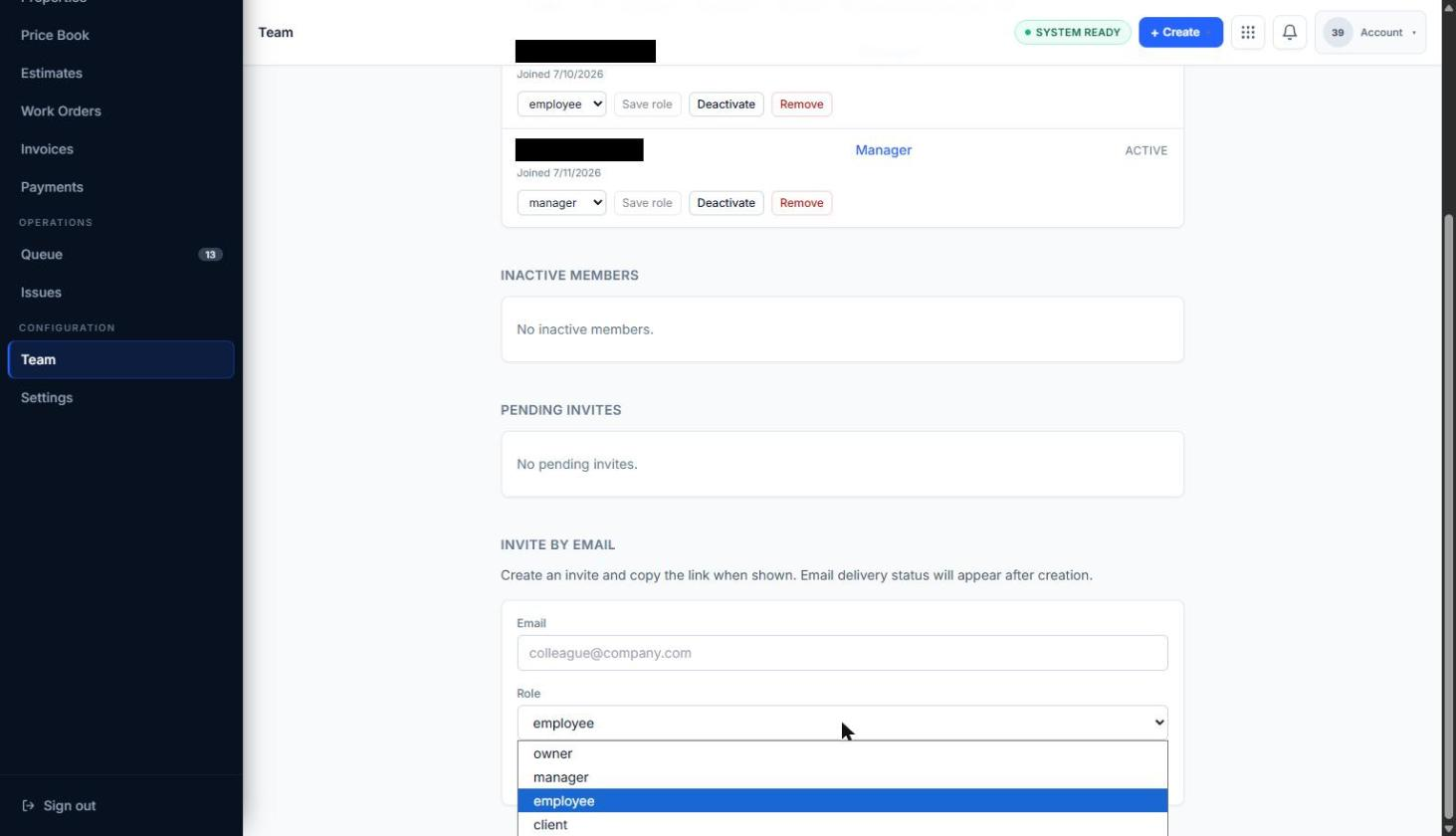
Role options available on Team.
Expected result
Section titled “Expected result”The operator can see who currently has access, what role label is attached to each person, whether they are active, and whether any invites are outstanding, without leaving the Team page.
Warnings and notes
Section titled “Warnings and notes”- Visible role labels and controls are not proof of permission effects elsewhere in the product. Role behavior outside this page was not observed.
- Save role, Deactivate, Remove, and Create invite can change real membership. Those actions are documented as boundaries unless a separate verification pass executes them safely.
- This article does not claim what a Manager, Employee, Client, or Owner role can do outside Team.