
How to View and Update a Customer
Open a customer record to review its details and make changes to contact information.
Who this is for: Owner, Office Manager.
Before you begin
Section titled “Before you begin”You need an existing customer record. See How to Create a Customer if you haven’t added one yet.
Open a customer record
Section titled “Open a customer record”From the left navigation, select Customers, then click a customer’s name in the directory to open their profile.
Review the customer profile
Section titled “Review the customer profile”The customer profile shows the primary contact, phone and email, linked service locations, and related estimates and work activity for that customer.
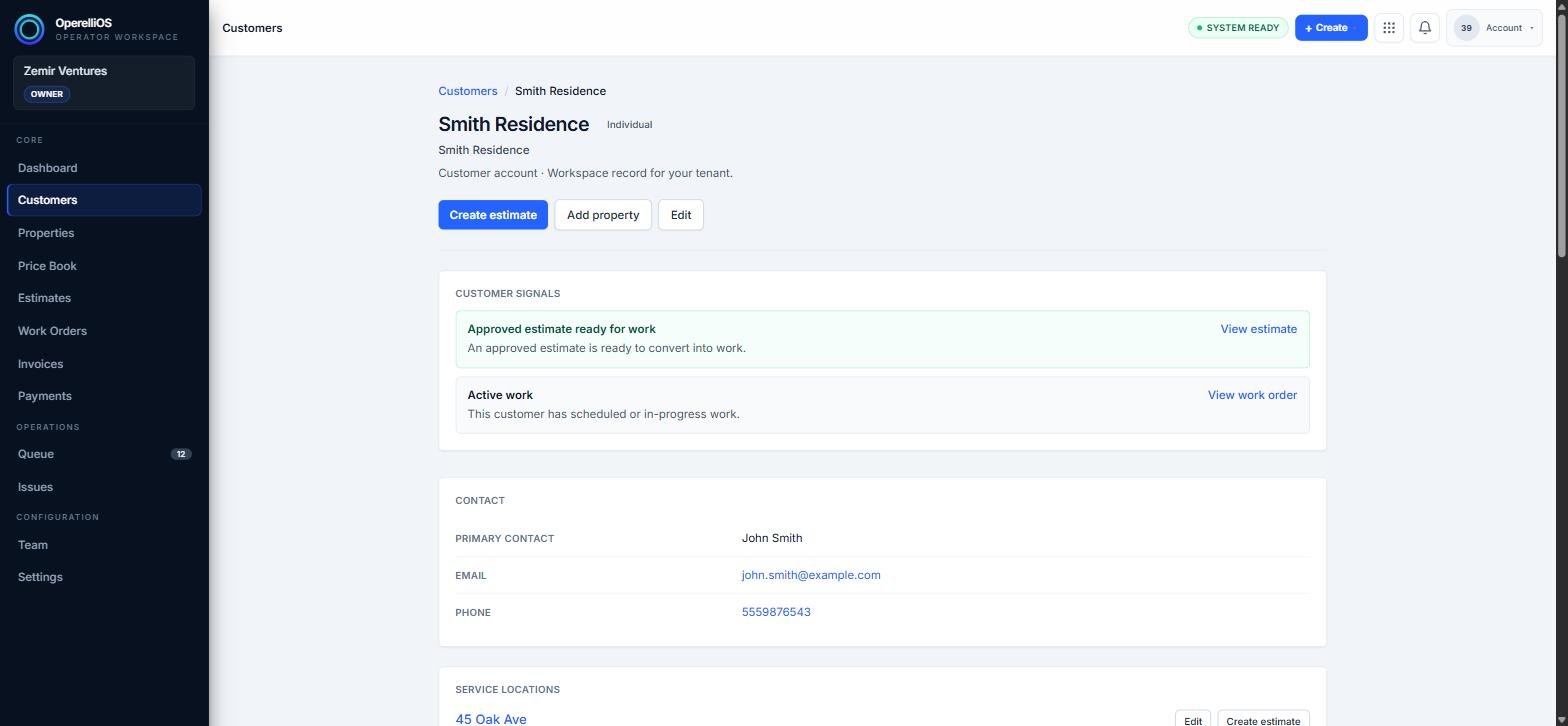
The customer profile page, showing contact details and linked service locations.
Edit customer details
Section titled “Edit customer details”Click Edit near the top of the profile. A dialog opens where you can update the customer type, contact name, company name, display name, email, and phone.
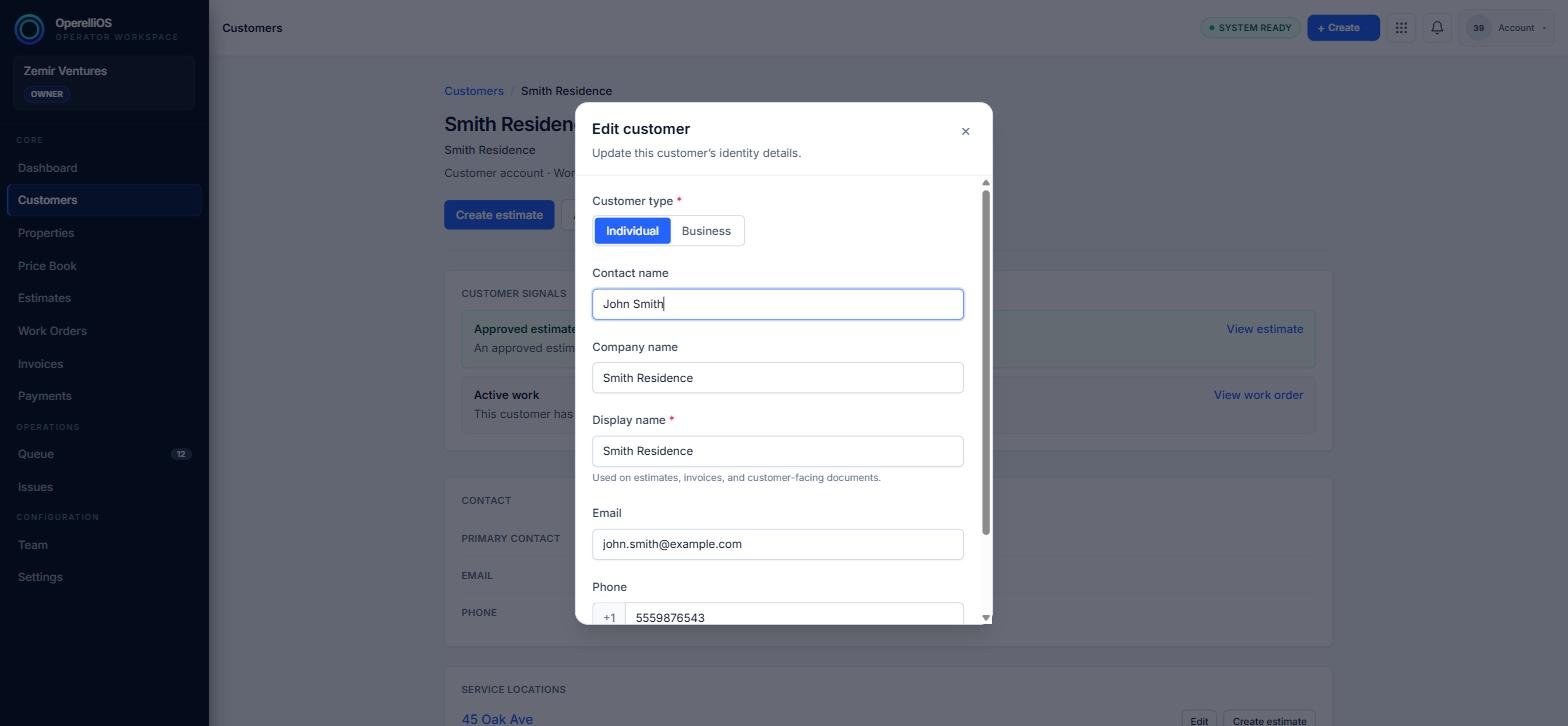
The Edit customer dialog with editable contact fields.
Save your changes
Section titled “Save your changes”Click Save changes to apply your edits, or Cancel to discard them and return to the profile.
Expected result
Section titled “Expected result”The customer profile reflects your updated details immediately, and the changes are visible anywhere that customer appears, including estimates and service locations.
Common issues
Section titled “Common issues”Save changes is disabled
A required field, such as Display name, may be empty. Fill in all required fields marked with an asterisk.
I don’t see my recent edits
Refresh the page. If the changes still don’t appear, confirm you clicked Save changes rather than Cancel.